Step 2: Connecting Grasshopper to InForm
Now that you have the example script open, let's connect it to the InForm Web Platform to see it in action.
2.1 Open the InForm Web Platform
Navigate to the InForm Web Platform:
2.2 Create a New Design
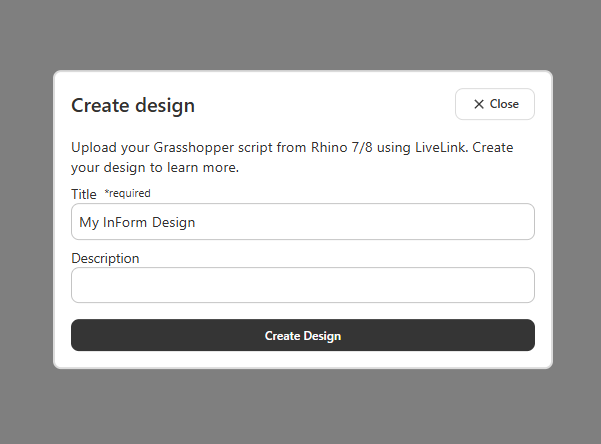
- Click the Create Design button
- Assign a title to your design (e.g., My First Test)
- Optionally add a description to help you remember the purpose
- Click Create to proceed
2.3 Copy the Connection Key
Once your design is created:
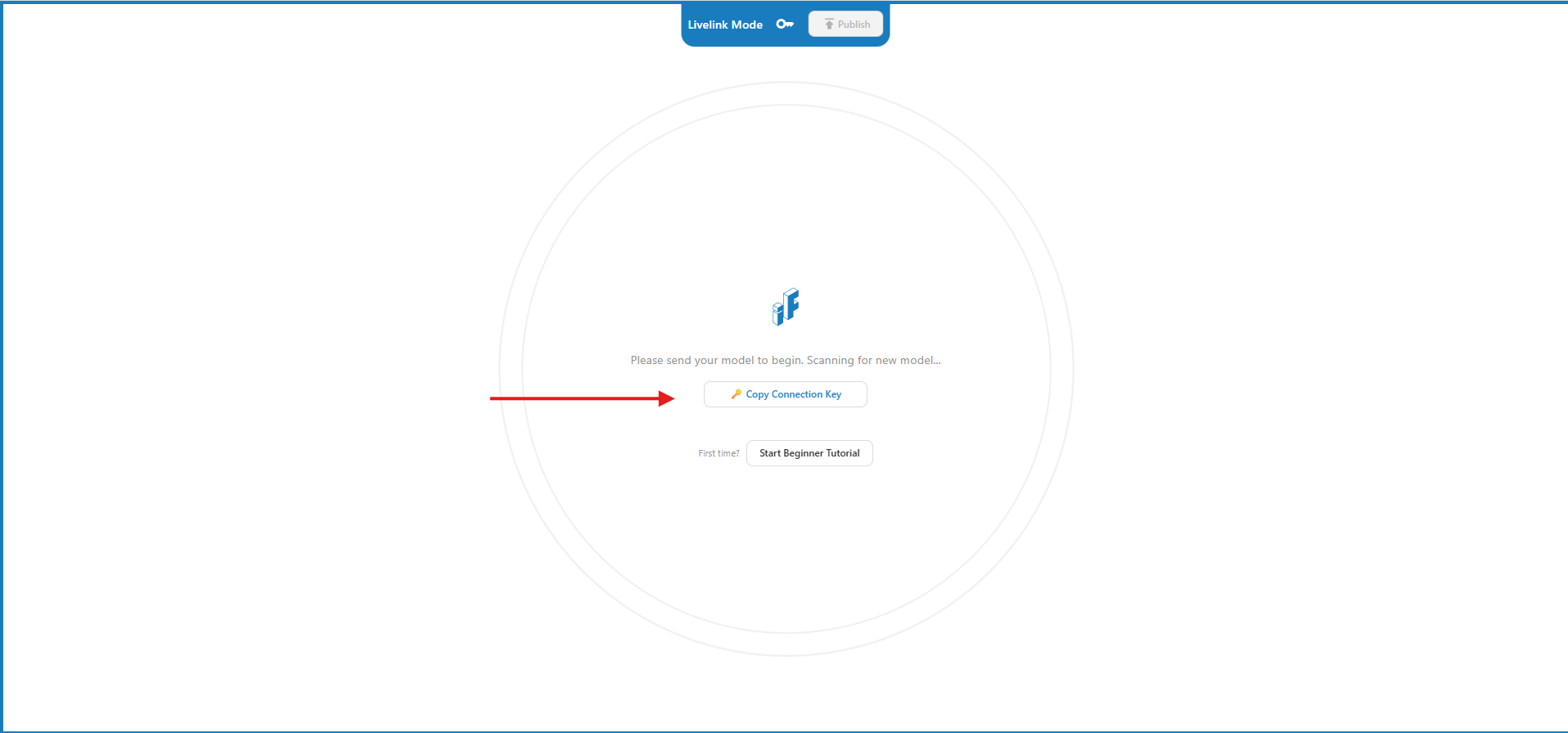
- You'll be taken to the Design page
- Locate the Connection Key displayed on the page
- Click to copy the Connection Key to your clipboard
Keep It Secure
The Connection Key is unique to your design. Anyone with this key can upload to this design, so keep it secure.
2.4 Paste the Connection Key in Grasshopper
In the open example script:
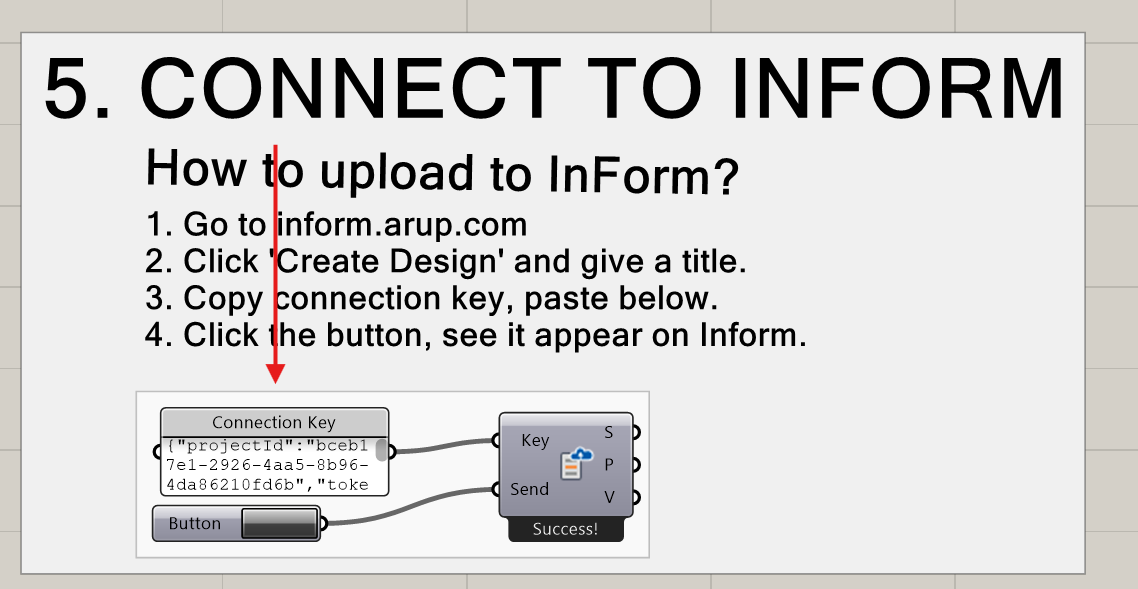
- Locate the Send Model component (on the right side of the canvas)
- Find the panel already connected to the
Keyinput - Double-click the panel and paste your Connection Key, replacing the placeholder text
- The button is already connected to the
Sendinput
2.6 Verify Connection on Web Platform
Return to the InForm Web Platform:
- The page should automatically refresh within a few seconds
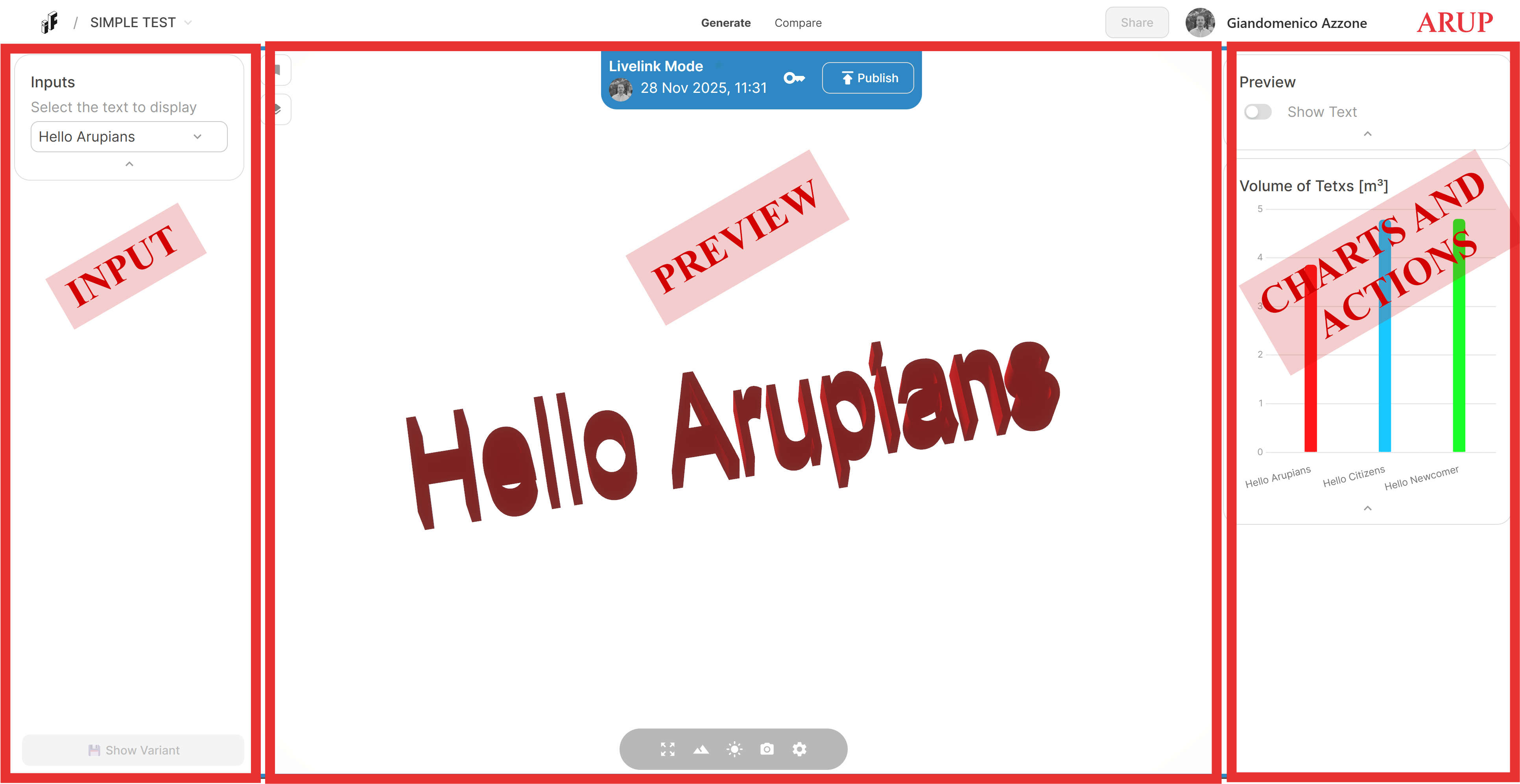
- You should now see three main sections:
- Input parameters (left panel)
- Geometry preview (center viewer)
- Charts and actions (right panel)
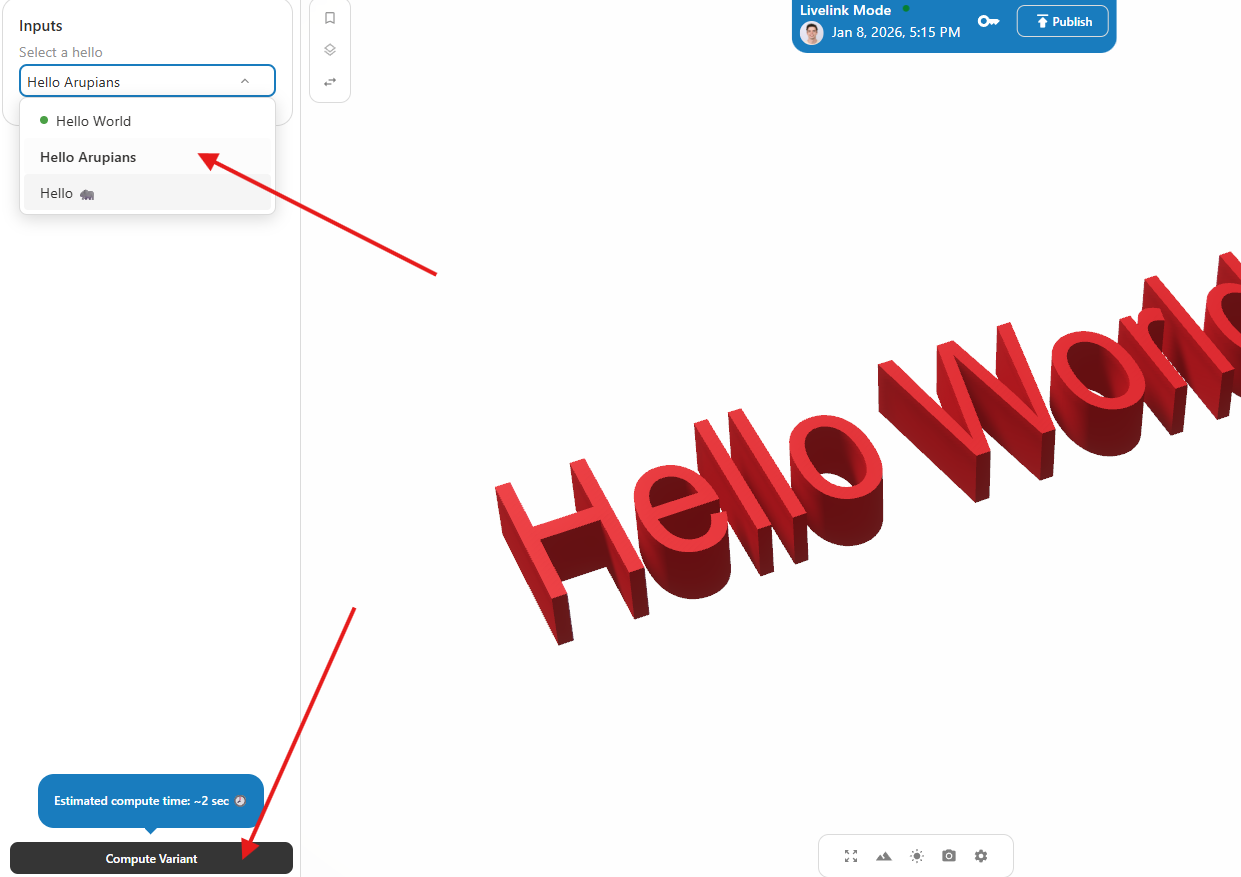
2.7 Test the Model
- Adjust an input value in the left panel
- Click Compute Variant
- Observe the geometry and outputs update in real time
🎉 Success!
Congratulations! Your Grasshopper script is now successfully connected to InForm.
You can now:
- Modify parameters through the web interface
- Share your design with colleagues
- Explore variants without opening Grasshopper
Troubleshooting
Upload fails with error message
- Check that the Connection Key is correct (no extra spaces)
- Check if your Connection Key is not expired. (It is valid for an hour)
- Ensure you're connected to the internet
- Verify that your Arup account has access to InForm
- Check the error message for specific details
"Success!" appears but nothing shows on web platform
- Ensure your model includes InForm geometry components
- Check that geometry is not hidden in Grasshopper
- Try refreshing the web page
- Verify the Connection Key matches the current design
Model takes a long time to upload
- Complex geometry may take longer to process
- Check your network connection
- Consider simplifying geometry for testing
- Review Performance Optimization
Next Step
Now that you're connected and have seen the example in action, explore the full range of InForm components.