Step 4: Add Toggle Geometry Action
So far we have created an input, output (chart) and geometry. In certain cases we want the dashboard to react to something the user does.
A common case is: Showing the results of an analysis when the user presses a button.
For the purpose of our example file, we are:
- Finding the letter with the largest volume.
- Create a transparent box around that letter to highlight it.
- Only show the transparent box when the user toggles a switch.
4.1 Finding the letter with the largest volume.
- Use the Sort List component to sort the volumes of the letters. Connect the text volumes to K and the text 3D breps to A.
- Reverse the order so it sorts from largest -> smallest.
- Add List Item to grab the largest letter.
- Add Bounding Box to create a box around the letter.
- Connect to a Brep to convert from box to Brep.
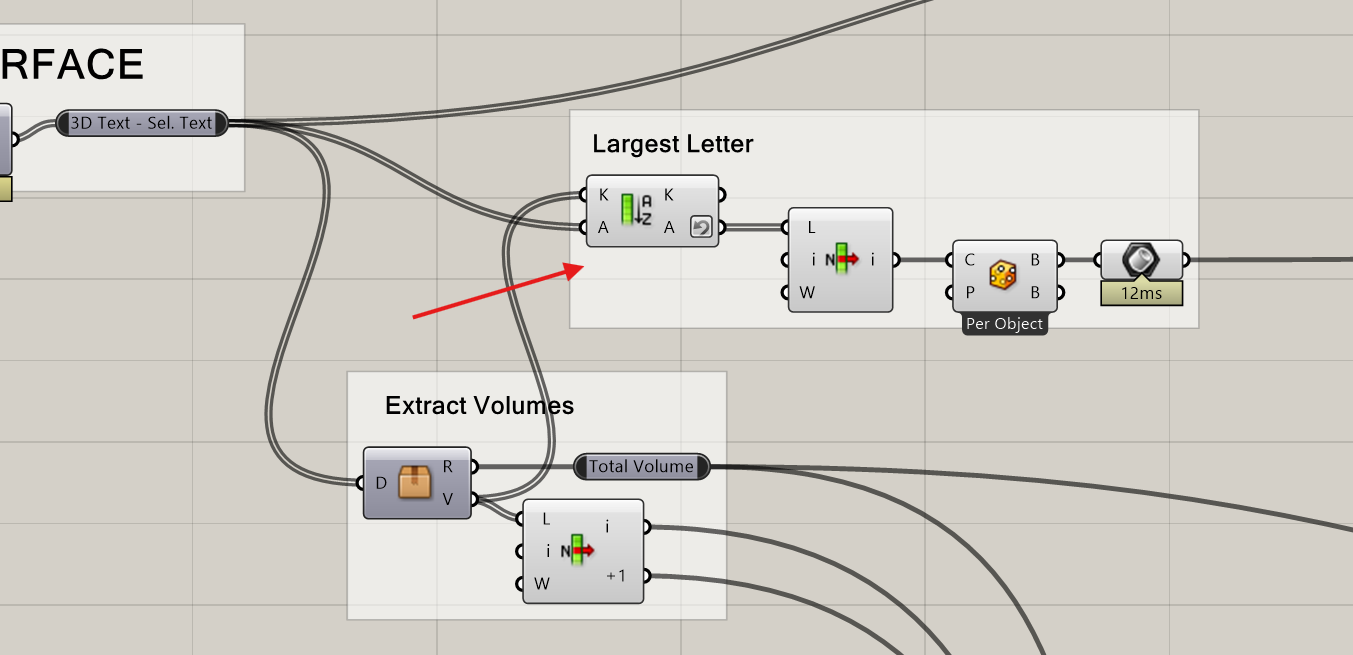
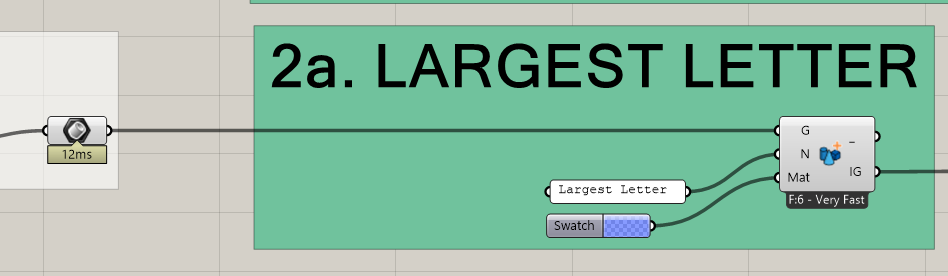
4.2 Creating a transparent box in InForm
- Connect the brep to a Geometry Layer component.
- Give the layer a name.
- Add a Color Swatch and lower the transparency.
4.3 Creating the toggle
- Add a Toggle Geometry component.
- Connect Geometry Layer to the toggle.
- Give a name and group name.
- The geometry will only become visible when the user switches it on.

4.4 Update InForm page
- Send the model to InForm again.
- Your toggle and the box should now appear.
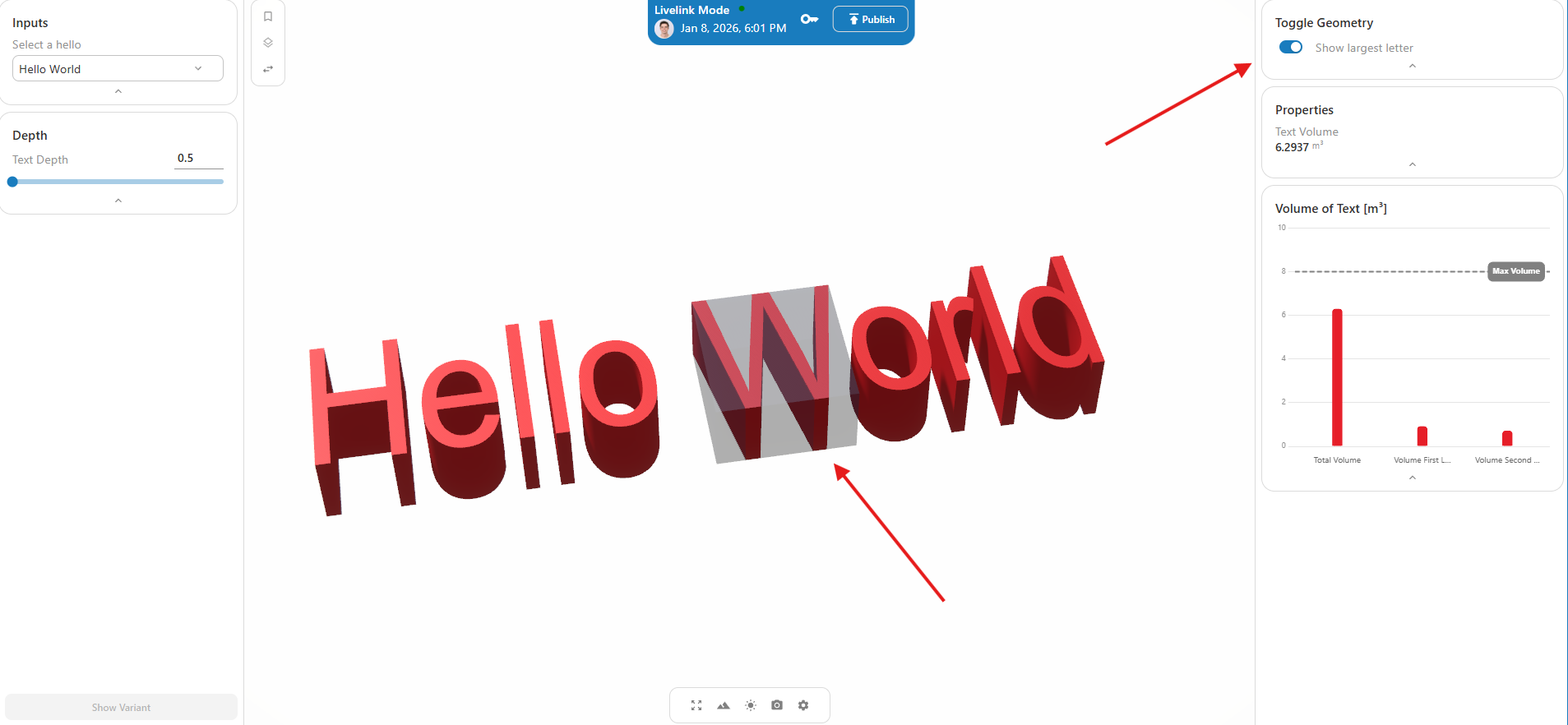
Refresh the page
Sometimes the geometry toggle doesn't appear directly. In this case refresh the page.
Next Step
Explore the component library to add more inputs, geometry, charts, and camera controls.