2. Run a Batch Job
A Batch Job will compute numerous design variants of your design. This will create a dataset of your input space that will automatically be added to the database and visualized in Parameterspace.
1. Setting Up a Batch Job
- Make sure your design has been published and is running smoothly.
- Click on the Batch Job tab in the settings.
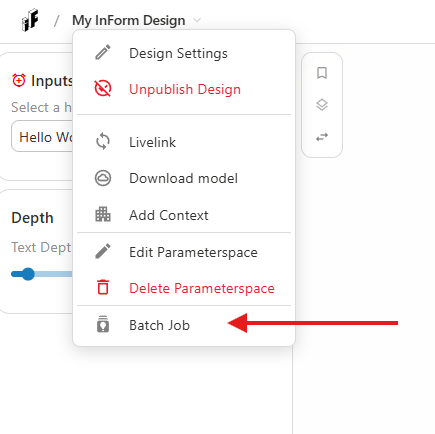
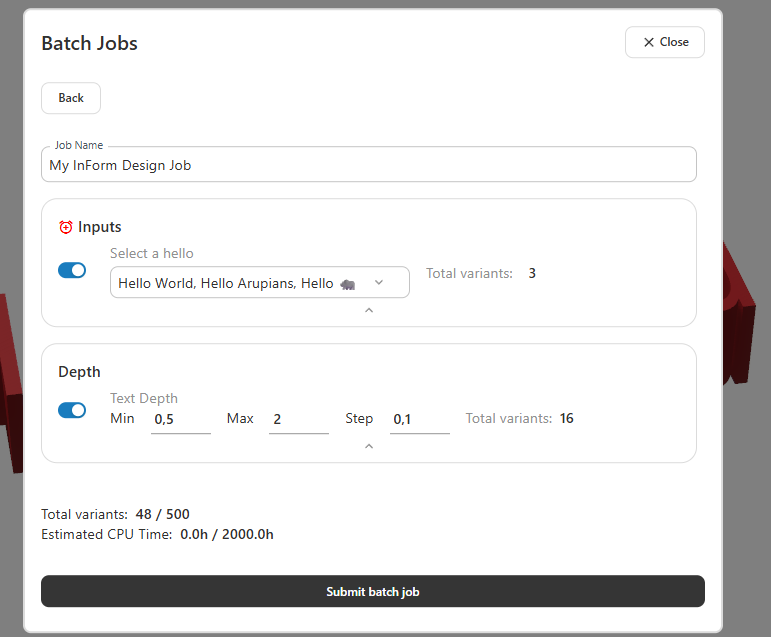
- Click on New Batch Job and select which inputs should be calculated.
-
In this case we can run through all available options, as our solution space is small. This would be 3 x 16 = 48 variants.
-
Check if the estimated compute time is reasonable and submit the batch job. Once submitted, you can't cancel it, so it is good to try it with a few options first.
-
Your job will prepare for a few seconds.
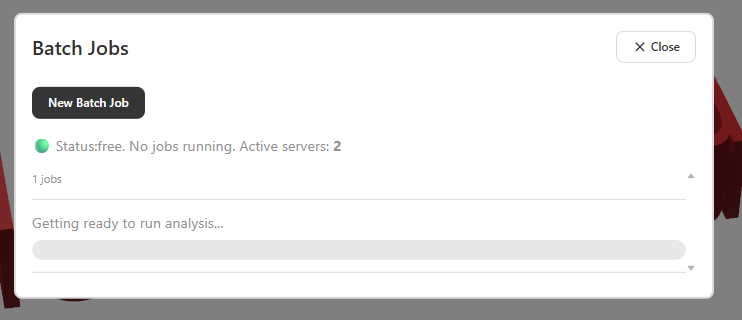
- It will inidicate that the jobs have been added to the queue when the status says Submitted. Now simply wait until the batch is completed. You can close the website and do something else in the meantime.
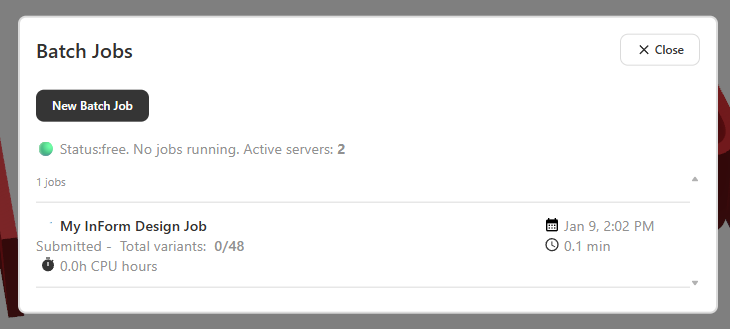
Server stuck
- Sometimes the server is stuck. If the server is still stuck at 0 variants after 10-15 min, please contact ali.talebi@arup.com or simon.lut@arup.com
- the job is finished when it says success.
Parallel Computing
- The batch function makes use of Parallel Computing for high workloads. Generally there is 1 server running, but if the workload becomes:
- At least 200 variants in the queue for more than 5 minutes.
- The servers will automatically scale up to 50 instances to deal with the workload.