1. Create Preset
Now that we have all the variants in the database, we can start to compare them. Let's save our favourite variants as a preset!
Steps to Create a Preset
- Select on of your favourite variants.
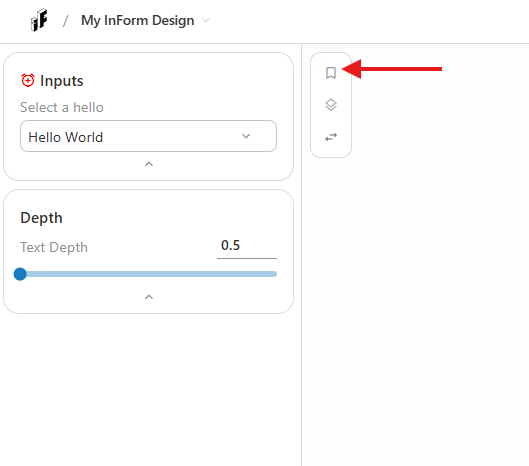
- Create preset. A screenshot will be taken of your viewport.
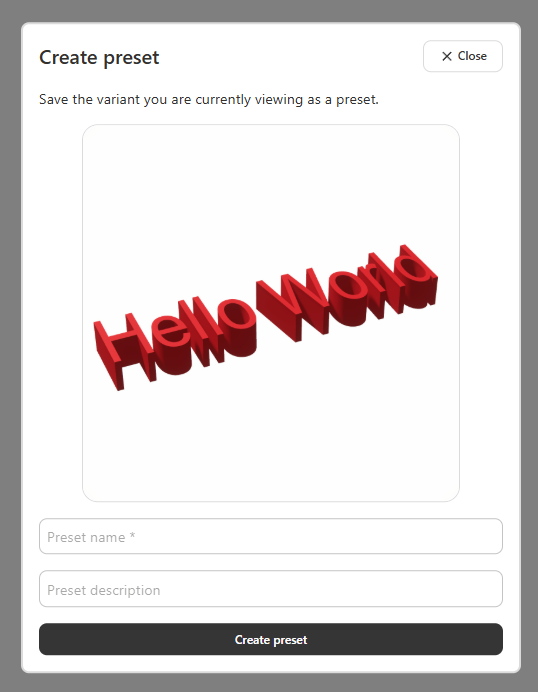
- Give a preset name (should be unique) and a description (optional).
- Save your preset.
- You'll now see it appear in the preset menu.
Creating a baseline preset
Sometimes we want to compare a variant to a baseline. This is possible in InForm by marking on of the presets as a baeline.
- Create a second preset of a different variant.
- Set one of the presets as the baseline using the three dots on the right top.
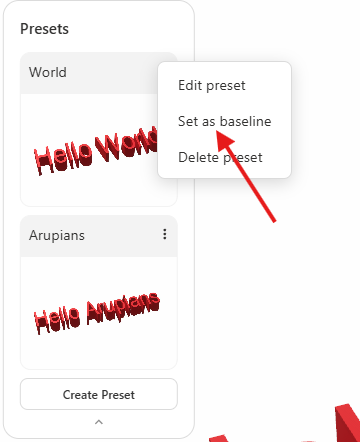
- Try changing to a different preset again, you'll see that some numbers in the results will now be compared to the baseline.

Best Practices
- Presets can only be edited or deleted by you and the design administrator.
- External guests are able to create presets, but only delete their own.
- Presets will be reset if a new model is uploaded.
Next: 2. Compare variants